VSCode extension
If you are using VisualStudio Code, install the Jinja-Jx extension.
Syntax Highlighting
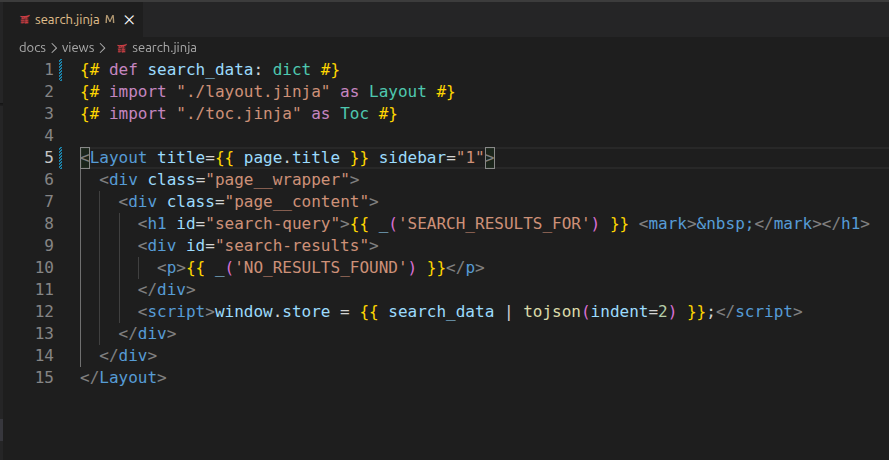
The extension provides full syntax highlighting for .jinja files, including:
- Jx pragmas:
{#import ... #},{#def ... #},{#css ... #},{#js ... #} - PascalCase component tags (e.g.,
<MyComponent>,<Card />) - Jinja2 expressions (
{{ ... }}), statements ({% ... %}), and comments ({# ... #}) - Standard HTML (inherited from VS Code's built-in HTML grammar)
Go-to-Definition
Ctrl+click (or Cmd+click on macOS) to jump to a component file. This works from three places:
- The import path — click on the string in
{#import "card.jinja" as Card #} - The alias name — click on
Cardin the import declaration - A component tag — click on
<Card>or</Card>anywhere in the template
The extension resolves paths using your catalog folders (auto-detected from Python files), relative paths (./, ../), and prefixed paths (@ui/modal.jinja).
Diagnostics
The extension runs jx check automatically and shows errors inline in the editor. Checks run:
- On save (
.jinjaand.pyfiles) - When a
.jinjafile is opened - On startup
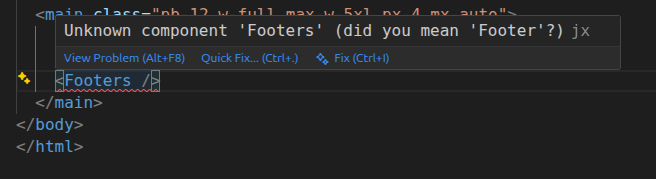
Errors appear in the Problems panel and as red underlines in the editor, including "did you mean?" suggestions for typos.
This uses the same checker as the CLI validator — see that page for details on what gets checked.
Snippets
Type a prefix and press Tab to expand:
| Prefix | Expands to |
|---|---|
jximport |
{#import "..." as ... #} |
jxdef |
{#def ... #} |
jxcss |
{#css ... #} |
jxjs |
{#js ... #} |
jxslot |
{% slot name %} ... {% endslot %} |
jxfill |
{% fill name %} ... {% endfill %} |
jxcomp |
Full component scaffold (import, css, js, def) |
Formatting
The extension provides document formatting (Shift+Alt+F) by delegating to VS Code's built-in HTML formatter. Your HTML formatting settings (indentation, wrapping, etc.) are respected.
Auto-Detection
The extension automatically scans your workspace for Python files that use Catalog() or .add_folder() to detect:
- Component folder paths (used by go-to-definition)
- Catalog import paths (used by diagnostics)
If no Catalog() call is found, it falls back to looking for .jinja files inside well-known folder names (views, components, templates).
The scan re-runs whenever a .py file is created, changed, or deleted.
Installation
Launch VSCode Quick Open (Ctrl+P), paste the following command, and press ENTER.
ext install jpscaletti.jinja-jx
Alternatively:
- Download the
jinja-jx-VERSION.vsixfile from the GitHub repo - Launch VSCode Quick Command (Shift+Ctrl+P)
- Run "Extensions: Install from VSIX..."
Configuration
All settings are optional — the extension works out of the box with auto-detection.
| Setting | Default | Description |
|---|---|---|
jx.check.enabled |
true |
Enable or disable diagnostics |
jx.pythonPath |
"" |
Path to the Python interpreter. Auto-detects from the Python extension or PATH if empty |
jx.catalogPath |
"" |
Import path to your Catalog instance (e.g. myapp.setup:catalog). Auto-detects if empty |